
Invite your team
You can give someone access in two ways, and they are not interchangeable. Add a person to the organization and they see every project it holds, present and future. Share one project and they see that project, read only, and nothing else around it.
Both are invitations sent by email, both expire after 7 days, and both are reserved to the owner or an admin of the organization. There is no plan limit on the number of people in an organization.
Who can do what
An organization has exactly one owner, any number of admins and members, and the role is chosen when you invite. A viewer is not an organization role: it is what someone invited to a single project gets.
| Can | Owner | Admin | Member | Viewer |
|---|---|---|---|---|
| Read the dashboards | every project | every project | every project | its own project |
| Trigger a scan | yes | yes | no | no |
| Create a project | yes | yes | no | no |
| Change project settings | yes | yes | no | no |
| Manage API keys | yes | yes | no | no |
| Invite and remove people | yes | yes | no | no |
| Buy or release private slots | yes | yes | no | no |
| Delete a project | yes | yes | no | no |
| Billing, ownership transfer, deleting the organization | yes | no | no | no |
Member is a read only role. A member opens every dashboard of the organization but cannot trigger a scan, so give Admin to anyone who needs to run the tool, not just read it.
An admin cannot change or remove another admin or the owner.
Invite someone to an organization
Open the organization settings, Members tab, then Invite Member.
Email address. The invitation is tied to it: it can only be accepted by an account with exactly that email address.
Role. Admin or Member. Ownership is not granted here: it is transferred,
see Organizations and plans.
Send Invitation emails the person and adds an amber row to the members list, marked Invitation pending, with who invited them and the expiry date. Click Cancel invitation to remove it. The link in the email stops working immediately.
If they do not see the invitation, ask them to check their spam folder, then click Resend invitation on the row. They get a new email with a new link, the previous link stops working, and the 7 days start again. An invitation can be resent three times an hour.
Two things can prevent you from sending the invitation:
| Situation | What to do |
|---|---|
| The address already belongs to a member | They are in the list already, possibly under another display name. |
| An invitation to that address is still pending | Click Resend invitation on its row instead. |
Share a single project
Use this for someone who must see one project and nothing else: an external auditor, a client, a colleague from another team. Open the project, Members tab, then Invite on the Project members card.
That tab shows the two levels of access, one card each. Project members, first, lists the viewers invited to this project alone. Organization members, below it, lists the people who reach this project through the organization, and it is read-only here: Manage takes you to the organization settings.
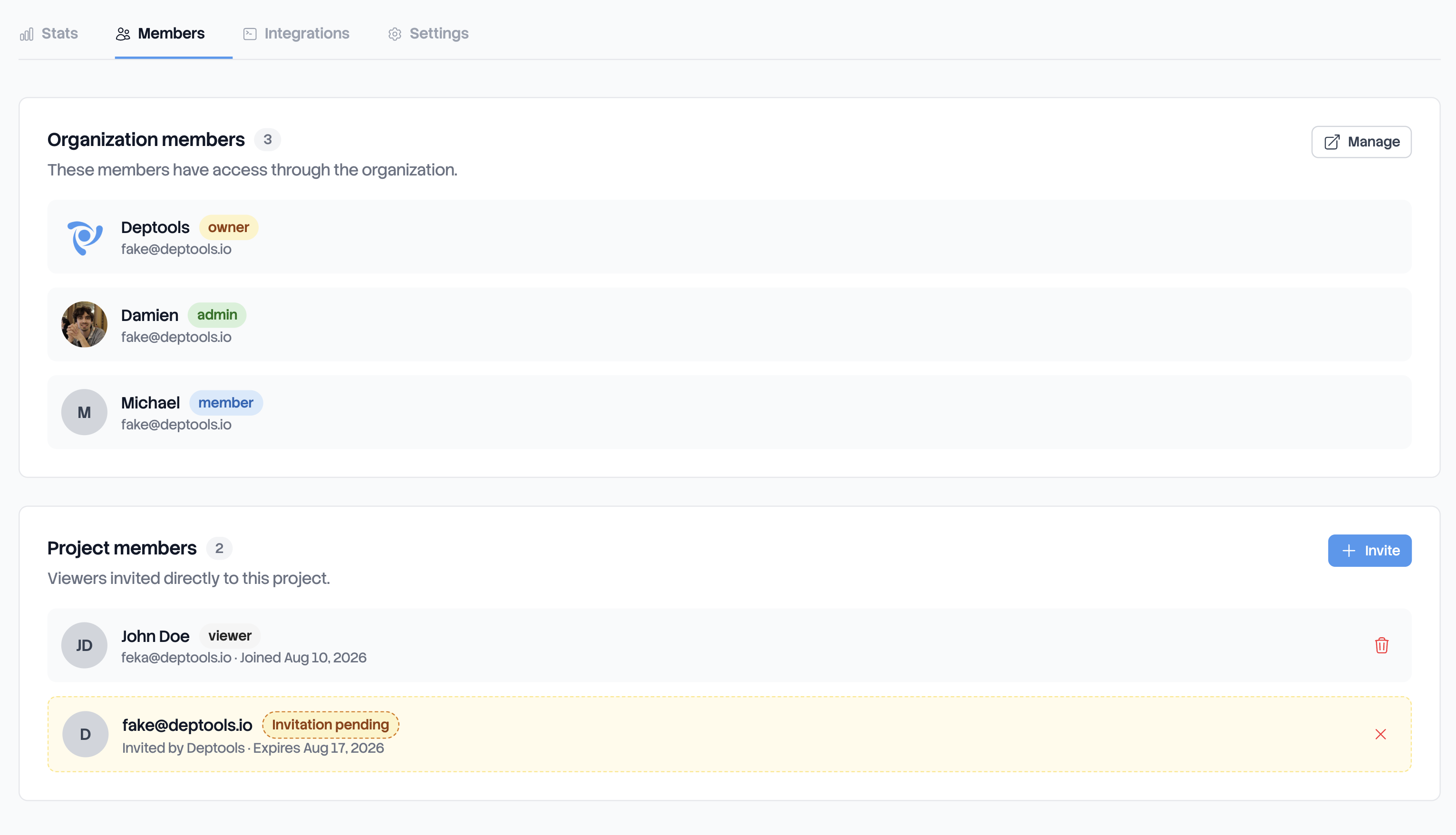
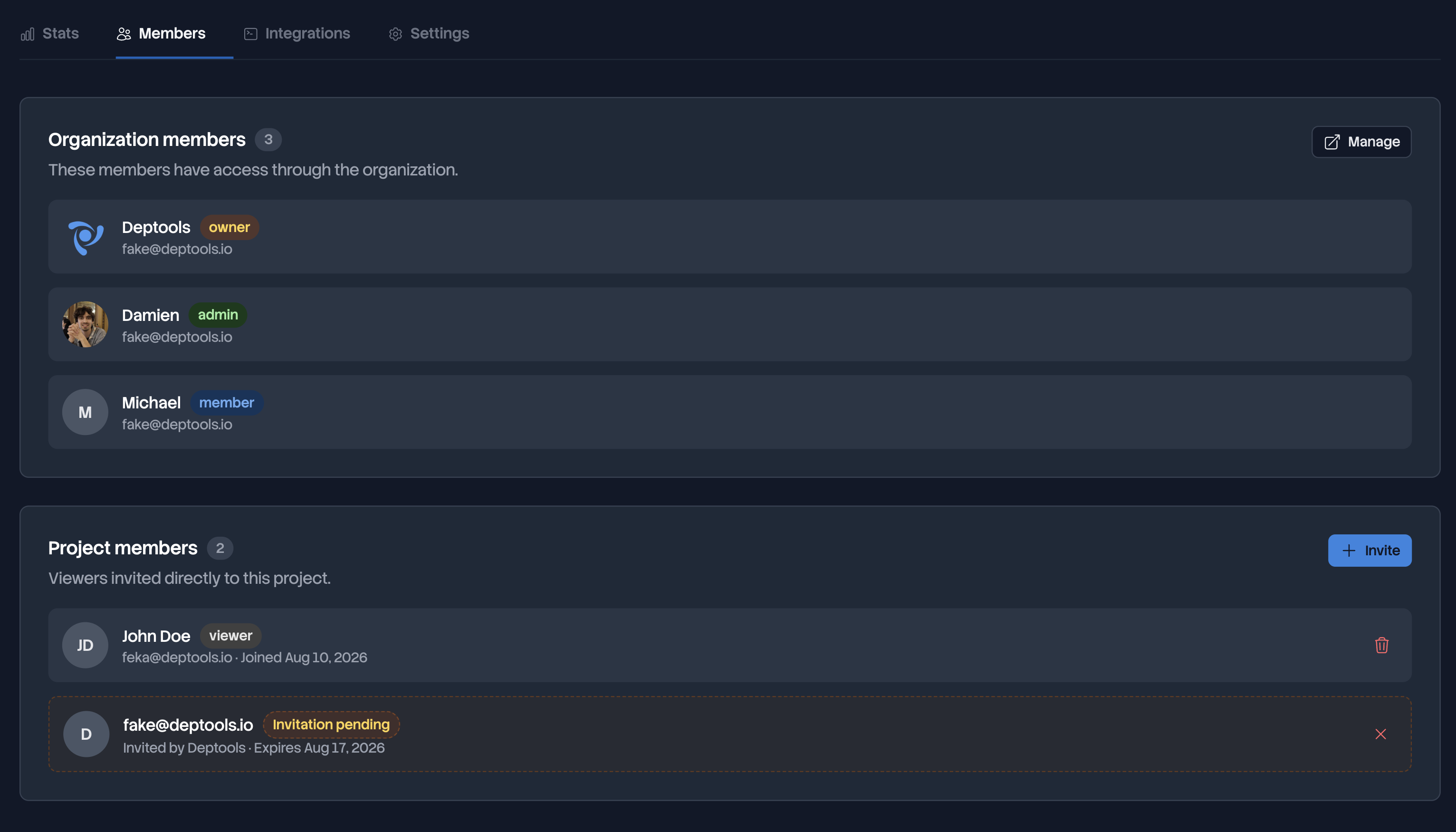
A viewer reads the dashboard, browses its history and downloads its exports. They cannot trigger a scan, open the settings, see the API keys or invite anyone. The share works on a private project, which is its main use: a project on a public GitHub repository already has a public dashboard, so anyone with the link reads it without an invitation.
A pending invitation blocks a second one here too: click Resend invitation on its row instead, which works as on the organization side. Inviting someone who is already a member of the organization is refused. They already have broader access through the organization.
Accept an invitation
The invitation email names the organization or the project in its subject. It carries an Accept Invitation button and a Decline button. Both open a Deptools page naming the inviter, what is being shared, the address the invitation was sent to and the expiry date. Declining works without logging in.
If you already have an account, log in and click Accept. An organization invitation takes you to its projects, and the organization appears in the switcher. A project invitation puts the project under Shared with me, on the Projects page of your personal organization.
If you do not, click Create account:
- signing up with email and password on the invited address accepts every pending invitation for that address, at signup. There is nothing left to click;
- signing up with GitHub brings you back to the invitation page, where you accept it. The email address of your GitHub account must be the invited one.
Three things can prevent an invitation from being accepted:
| Situation | What to do |
|---|---|
| You are logged in under another address | An invitation opens only for the address it was sent to, and your GitHub account may carry one you did not expect. Log in with the invited address, or ask for a new invitation to the one you use. |
| The invitation is no longer valid | Past 7 days, canceled, or already used. Ask for another one. |
| You are already a member of the organization that owns the project | Nothing to do, the project is already visible to you. |
Change or remove access
Everything happens in the same two places, the Members tab of the organization settings and the Members tab of the project.
Change a role. The select on each organization member row switches between
Admin and Member, and takes effect at once. The owner row cannot be changed,
and an admin cannot change another admin.
Remove someone. The trash icon on the row removes an organization member from every project of the organization, or a viewer from that one project. Both are immediate and both are permanent: coming back means a new invitation.
The API keys someone created keep working after they leave, so leaving never breaks a pipeline. Rotate them if that person could read the values, see Manage API keys.
Leaving an organization yourself, transferring ownership and deleting an organization are covered in Organizations and plans.
Leave a project shared with you
A project someone shared with you sits under Shared with me, on the Projects page of your personal organization. Its card has a Leave action.
Leaving is immediate, and it removes your access to the dashboard and its whole history. Only an owner or an admin of the organization can invite you again.
Next steps
- Organizations and plans to choose where a project lives before you share it.