
Connect a GitHub repository
Every GitHub project reads its build file through the Deptools GitHub App, whether the repository is public or private. Signing in with GitHub is not the same thing: that step identifies you, but it grants no access to any code.
The Quickstart walks you through the creation flow. This page covers the App: what it can read, how to reach a repository that does not appear in the list, what a private repository requires, and what can no longer be changed once the project exists.
Install the GitHub App and choose what it can read
The App is installed once per organization. It ties one Deptools organization to one GitHub account, either your personal account or a GitHub organization. The repositories of that account are the ones you can add.
You can install it from two places:
- While adding your first project. Open Connect a repository, choose GitHub repository, and the GitHub App Required banner offers Install GitHub App.
- At any time after that. Organization settings, GitHub tab. The same screen tells you whether the App is currently installed, and offers Manage repository access.
You must be an owner or an admin of the Deptools organization. On GitHub, installing on an organization also requires admin rights on that organization.
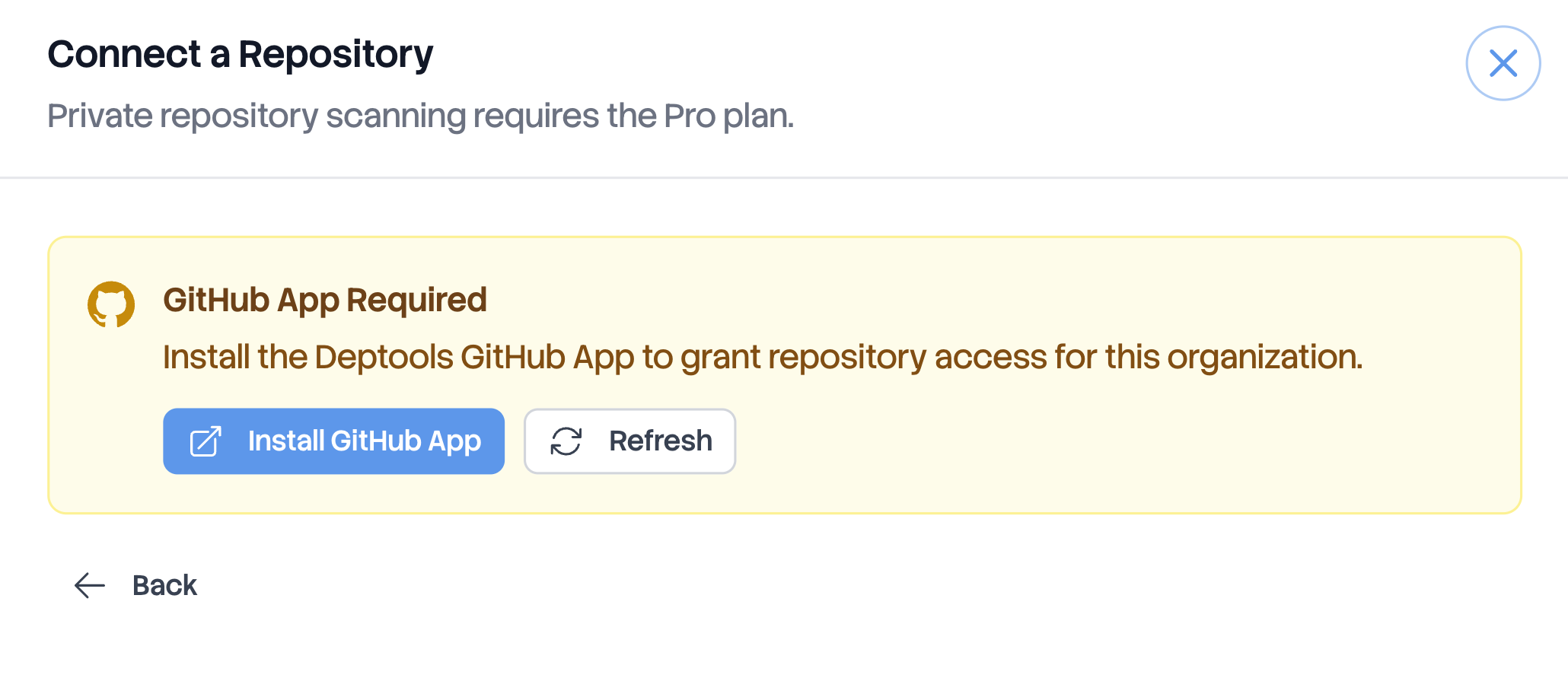
GitHub then asks which repositories the App may reach, all of them or a list you choose. Only what you grant appears in Deptools, and you can change that list later. Come back to Deptools and use Refresh to load it.
Repositories owned by a GitHub organization are added to the Deptools organization imported from it, not to your personal one. If a repository you expect is missing, check the organization selected in the switcher (on the navbar) first. Organizations and plans covers the organization types and how projects are shared between them.
Which permissions Deptools requests
Two grants are involved, and they are separate. Signing in uses OAuth scopes. Reading repositories uses the App.
| Grant | Permission | What it is used for |
|---|---|---|
| Sign in | read:user, user:email | Identify you, and reach you for account emails. |
| Sign in | read:org | List the GitHub organizations you administer, so you can import them into Deptools. |
| GitHub App | Repository contents, read only | Read the build files of the branch the project analyzes. |
| GitHub App | Repository metadata, read only | Read the default branch, the branch list, the visibility, and the file tree that locates build files and modules. |
| GitHub App | Organization members, read only | Match the GitHub organization to your Deptools organization. |
Nothing here is write access. Deptools never pushes a commit, never opens a pull request, and never comments.
GitHub has no permission that grants one file, so contents covers the whole repository. Deptools fetches only the build files, up to 150 per analysis, and keeps the analysis result, not your code. See https://deptools.io/privacy for retention.
The App also notifies Deptools when it is installed, suspended or removed. It sends nothing on push, and Deptools does not scan when you push. A scan is started from the app, from the API, or from your pipeline. See scan from GitHub Actions.
Removing the App on GitHub, or removing a repository from its access list, makes the scans of the affected projects fail. Past analyses stay readable. Reinstall the App, or grant the repository again, and scan.
Add a repository that is not in the list
The list holds what the App can reach, in the organization you are currently in. When a repository is missing, one of these applies:
- The App has no access to it. Use Repository not listed?, then Manage access on GitHub, add the repository there, come back, and Refresh.
- It is private, and the organization is not on Pro. Private repositories are not listed at all below Pro, whatever you granted on GitHub. See the next section.
- It belongs to another GitHub account. Switch to the Deptools organization imported from that account, or import it.
- You reached the project limit of your plan. The repositories are still listed, but none of them can be selected. The Free plan allows 10 projects.
A repository that already has a project stays selectable, because one repository can hold several projects. Only an identical configuration is refused, with A project with this repository configuration already exists in this organization.
Private repositories
Analyzing a private repository requires the Pro plan. On Free and on Open Source Max, private repositories are filtered out of the list, and the list shows an upgrade banner instead. Granting the App more access changes nothing there.
Each project on a private repository occupies one private slot. Pro includes 5, and extra can be bought. Organizations and plans explains what occupies a slot and what freeing one does to your bill.
Visibility
Repository visibility also decides who can read the dashboard:
- Public repository. Anyone holding the link to the dashboard can open it, with no account. This is what makes a README badge and a shared report work.
- Private repository. The dashboard requires signing in, and membership of the organization or of the project.
Where the project lives, and what is fixed after creation
The project is created in the organization selected when you opened the form, and it counts toward that organization's plan limit. Nothing moves it afterwards.
Four settings are decided once, at creation, and cannot be edited later:
| Fixed | Why it matters |
|---|---|
| Branch | The project follows that branch only. |
| Module | The subfolder whose build file is read, on a multi module repository. |
| Build system | The ecosystem analyzed, when the repository declares several. |
| Dependency scopes | The scopes counted in the graph and in the score. |
Only the project name can be changed after creation.
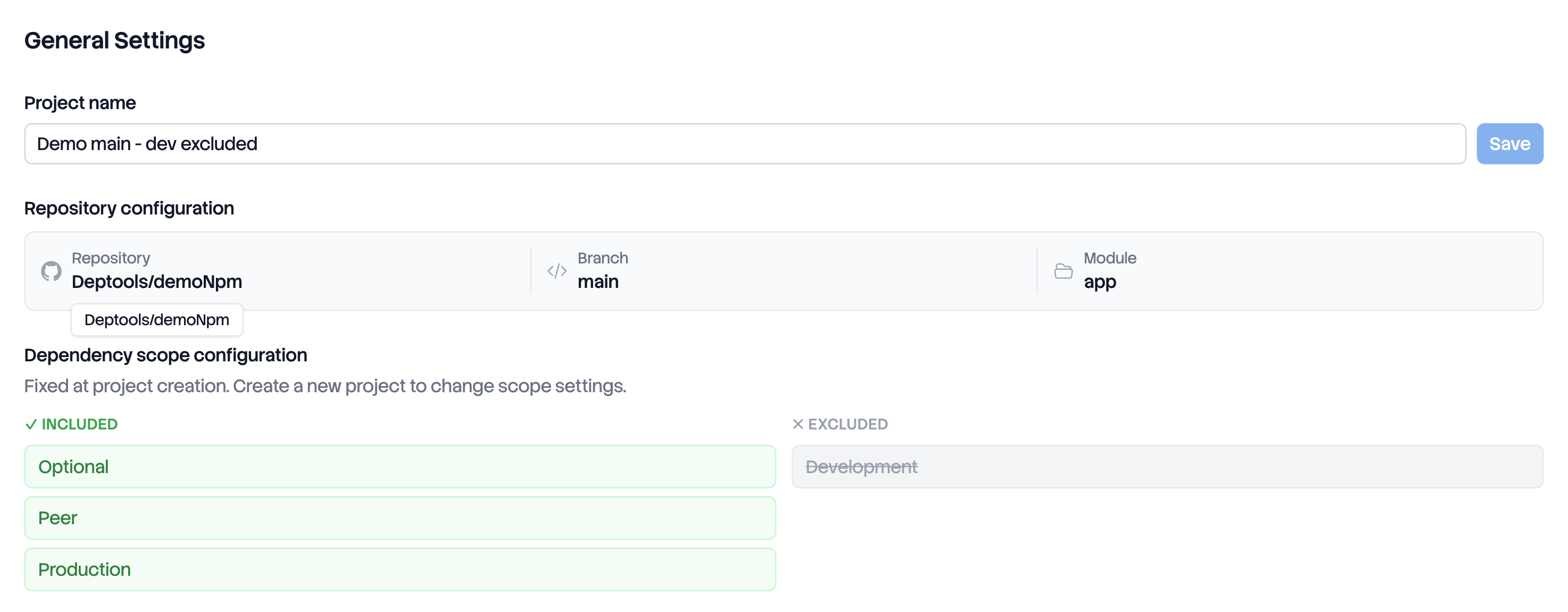
Those four settings define what the project measures, so a project keeps comparing the same thing to itself over time. To follow another branch, another module or another scope selection, create a second project on the same repository. Each one counts toward the plan limit.
Projects fed by a pipeline instead of GitHub behave differently: their branch and subfolder stay editable, and the change takes effect at the next push. See analyze a project without GitHub.
Next steps
- Exclude dependency scopes before you confirm a project, since the choice is one of the four fixed ones.
- Scan from GitHub Actions to scan on every push and fail the build when your dependencies get worse.