
Organizations and plans
Every project belongs to exactly one organization. The organization owns the plan, the billing, the private slots and the members. So the organization you create a project in decides what that project is allowed to do and who pays for it.
Your personal organization is created when you sign up. This page explains when that one is enough, when you need another, and what happens to your money and your data when the plan changes.
The three kinds of organization
The organization switcher in the navbar lists all three. Use Add Organization to create either of the two types you can create yourself.
| Kind | Created by | Members | GitHub repositories | Upload projects |
|---|---|---|---|---|
| Personal | Deptools, at signup | never | yes | yes, on Pro |
| GitHub organization | Add Organization > Import from GitHub | yes | yes | yes, on Pro |
| One you create manually | Add Organization > Create manually | yes | never | yes, on Pro |
A GitHub organization is imported from an organization you administer on GitHub. It behaves like the personal one, with members and its own plan on top. See Connect a GitHub repository for the GitHub App installation that follows.
An organization you create manually has no GitHub integration at all, and you cannot add one later. It has no GitHub tab in the settings, and it holds CI upload projects only. Create one when your code is not on GitHub.com, or when a client or a department needs a separate bill.
The General tab of the settings shows which kind you are looking at, under Type.
Your personal organization
It is created for you at signup, named after your GitHub login or your username, and you are its owner. It works like any other organization, with two permanent exceptions.
It can never have members. Its Members tab says so instead of listing anyone, and offers to create an organization for your team. To share a single project, invite a viewer to it instead, which Invite your team describes.
It cannot be transferred or deleted. It disappears only when you delete your Deptools account.
Everything else is available: it takes its own plan, connects public and private GitHub repositories, holds upload projects once it is on Pro, and creates API keys. If you work alone, you never need a second organization.
Where the plan lives
The plan is a property of the organization, not of you. Every limit is evaluated on the organization that owns the project: the number of projects, whether private repositories are allowed, how many slots are available, and the scan cooldown.
Two consequences:
- Being on Pro in one organization gives you nothing in another. If you own three organizations and want private projects in two of them, you pay for two subscriptions.
- Moving work between organizations means recreating the projects, so decide where a project lives before you create it, not after.
Inside one organization, the money is not everyone's to spend:
| Action | Who can do it |
|---|---|
| Start a subscription, open the billing portal | owner |
| Buy or release private slots | owner, admin |
| Create a project, which consumes a slot | owner, admin |
| Transfer ownership, delete the organization | owner |
An admin can already cause a charge by creating a private project, which is why buying a slot is open to admins too.
The scan cooldown
On the Free plan Deptools accepts one scan every three hours per project configuration. Pro and Open Source Max have no cooldown, so a pipeline can scan on every push.
A configuration is a repository, a branch, a module, a build system and a scope selection, inside one organization. Every scan counts against it, whether it came from Run scan in the app, from the API, from the GitHub Action or from any other pipeline. One exception: after an analysis that failed, the next scan is accepted right away.
The scan endpoint has its own limit as well, on every plan: 60 requests per hour, per IP address and per project. Runners hosted by your CI provider rarely reach it. Self-hosted runners share one address, so they can.
What your automation does when a scan is refused is up to the tool that calls it. Scan from GitHub Actions and Scan from another CI each describe their own behavior.
Private slots
A private slot is one unit of private project capacity, on the Pro plan. Two kinds of project occupy one:
- A project on a private GitHub repository.
- Any CI upload project, since it has no public repository behind it.
Public projects never occupy a slot, on any plan.
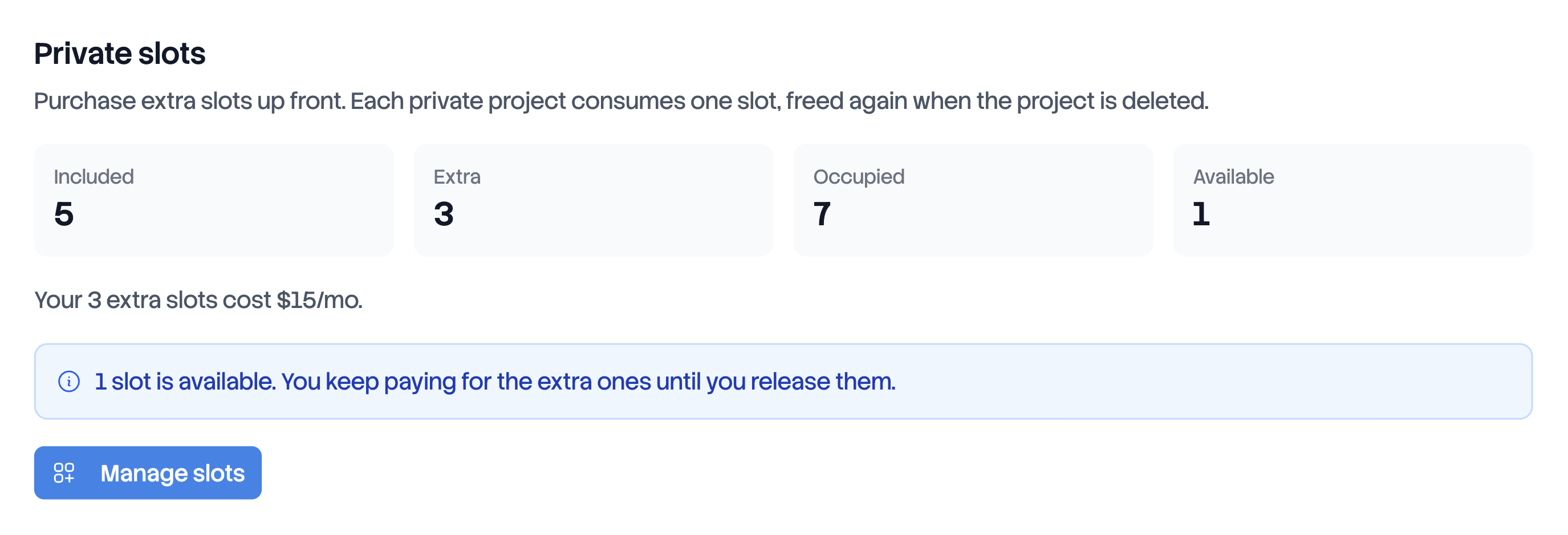
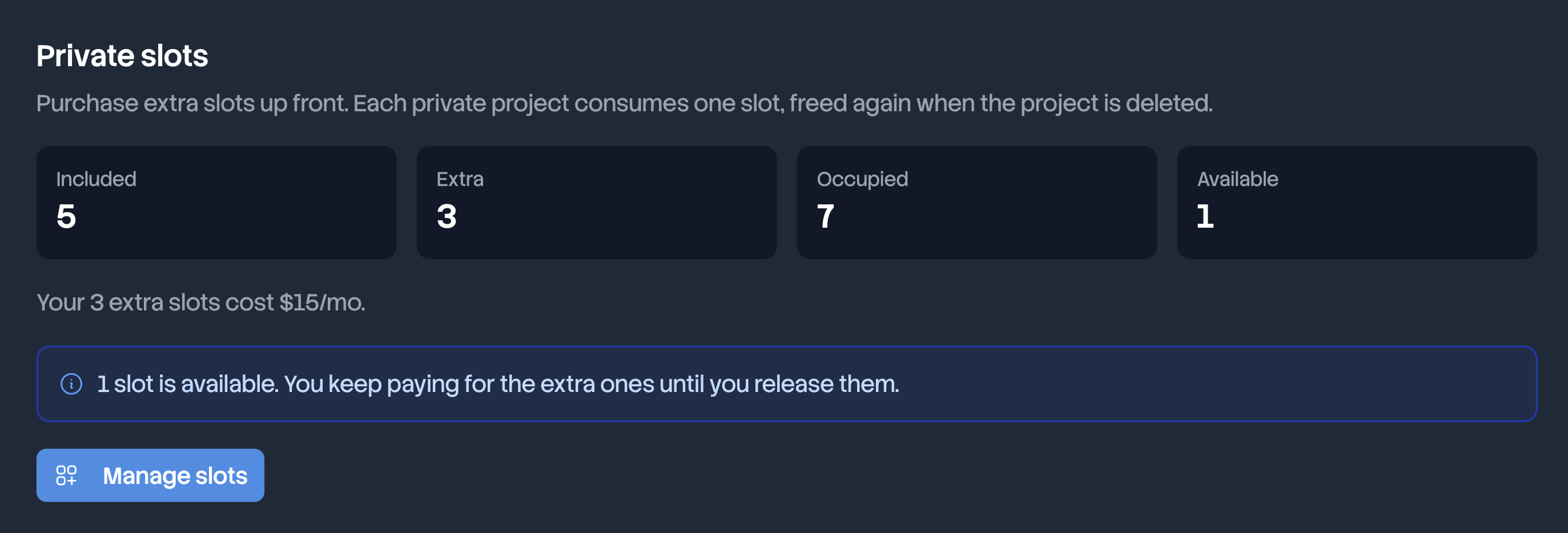
Your capacity is the slots included in the plan plus the extra ones you bought. Pro includes 5. The Plan tab of the organization settings shows the four numbers, Included, Extra, Occupied and Available.
Buying and releasing
Manage slots opens the purchase screen. You state the total number of extra slots you want, not how many to add. So sending the same number twice charges nothing, and the button is safe to press again after a network timeout. One extra slot costs $5 per month, or $54 per year on yearly billing (equivalent to $4.50/month).
| Direction | When it takes effect | What is billed |
|---|---|---|
| Buying | immediately, the slot is usable at once | invoiced at once, prorated on the current period |
| Buying during a trial | immediately | the trial ends and the full subscription is charged for one full billing period, see Upgrade, trial and billing |
| Releasing | on your next billing period | nothing is refunded for the current period |
A release is refused while the slots are occupied, and the rejection names the lowest number you can go down to:
The screen buys up to 200 extra slots. Past that, write to support@deptools.io.
Deleting a project frees the slot, not the bill
Deleting a private project frees its slot immediately, and you can put another project in it. The slot itself stays paid until you release it in Manage slots.
This is deliberate. Recreating a project, correcting a wrong build system or rotating a repository costs nothing, because the capacity you paid for is still there.
When no slot is available
Creating a private project with every slot taken is refused before anything is created.
Through the API, that rejection is a 402 NO_FREE_SLOT. Through the interface, it
is a modal with a Buy a slot button that creates the project right after the
purchase. If you are neither owner nor admin, it tells you to ask one.
On a trial, that modal says up front that buying ends the trial, so the button is never a surprise.
More projects than slots
An organization can end up over its capacity without doing anything wrong: switching a public GitHub repository to private turns its project into a private one. Nothing is deleted, and existing projects keep working. The Plan tab reports the gap and offers the two ways out: buy the missing slots, or delete projects.
Upgrade, trial and billing
You change the plan from the Plan tab of the organization settings. Only the owner sees the buttons.
| Plan | Monthly | Yearly |
|---|---|---|
| Free | $0 | $0 |
| Open Source Max | $29 | $290 |
| Pro | $89 | $890 |
Payment, invoices and the customer portal are handled by Lemon Squeezy, whose name appears on the checkout page and on your invoices.
From Free, Change Plan opens a checkout in a new tab. Paid plans come with a 14 day trial, once per organization: a second subscription on the same organization starts billing immediately. During the trial everything is unlocked, and the 5 private slots included in Pro are yours to use.
Once subscribed, plan changes and cancellation happen in the billing portal, behind Manage Subscription. Updating your card or downloading an invoice from there changes nothing about your projects.
The Plan tab shows the subscription status, Active, Past Due, Cancelled, Paused or Refunded, with Renews on or Ends on and the date. A failed payment moves the organization to Past Due, and a successful retry brings it back to Active.
After you cancel, access lasts until the end of the period you already paid for. The plan is not downgraded before that date, and the screen shows Ends on. You can no longer buy or release slots. Resuming the subscription from the portal reverses the cancellation and clears the end date.
- Every private project is deleted, with its whole analysis history, and cannot be recovered. This includes every CI upload project.
- Your extra slots are reset to zero, with no credit, since they are billed on the subscription that just ended.
- On Free, public projects above the limit of 10 are deleted too, starting with projects that were never scanned, then the least recently scanned.
Transfer ownership or delete an organization
Both live in the Danger Zone of the General tab, and both are reserved to the owner. A personal organization has no Danger Zone.
Transfer ownership hands the organization to another member. You become an admin, so you keep working in it but lose the billing actions. There is one owner at a time, and the move is permanent unless the new owner transfers it back.
Delete this organization erases its projects, their analyses and their history. The deleted data cannot be recovered.
Deleting an organization cancels its subscription with the payment provider first, so you are never charged for an organization that no longer exists. If that cancellation fails, the deletion is aborted and the organization is still there. Retry, or cancel from the billing portal and delete afterwards.
Members who are not the owner see Leave organization instead. Leaving removes their access to every project inside it.
Next steps
- Invite your team to add members, or to share a single project when the organization cannot have any.
- Analyze a project without GitHub once an organization created manually is on Pro.